

Prerequisites
- A Tero account with an observability integration connected
- An open issue in the Issues workspace
- Permission to review issues or deploy policies for the affected service
Open the issue
Go to Issues and select an issue from the work queue. Use filters when the queue is large. Filter by status, severity, service, team, domain, check, or linked issue. Cost and Compliance views narrow the queue to those domains.Check the summary
Read the header summary first. Confirm the affected service, issue category, severity, and current status. If the issue concerns a service you do not own, use the service or team fields to find the right reviewer before taking action.Review the evidence
Read the evidence sections before acting. Depending on the issue, Tero may show representative log events, affected fields, related checks, volume, cost, compliance exposure, or timeline entries. Open related services or log events when you need more catalog context.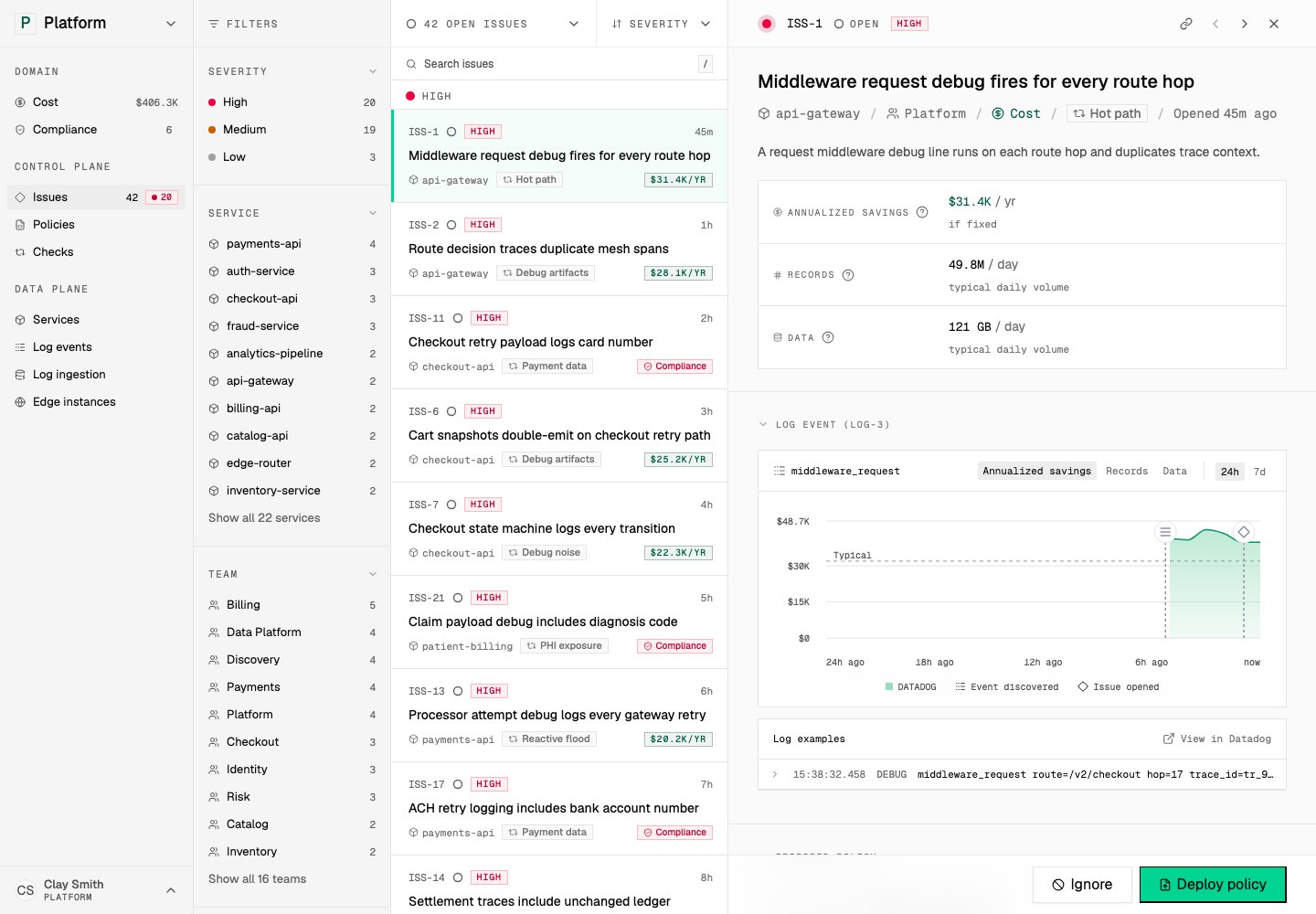
The evidence panel shows the facts behind a recommended policy. Open in demo
Inspect the policy card
If Tero recommends a policy, inspect the policy card. Confirm:- What the policy matches
- Which action it takes
- Which service or log event it affects
- Whether the policy already exists or needs deployment